


Instant Screencasts with Screenr.com
Posted on May 5, 2011 in Tech Tips & Tricks | 0 comments
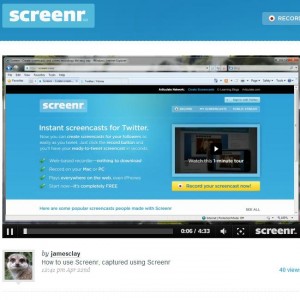 Screenr is the easiest, quickest way I have found to make a screencast. In a matter of minutes, you can put a video with your computer screen and your voice online.
What Good is a Screencast?
The most common use I have for screen.com is to show people how to do something on the computer. Once I even used TeamViewer to remotely help a friend configure something on her computer, then used Screenr to record Teamviewer’s display of her computer screen so that whenever she needed to do it again, she could watch the screencast instead of call me. Of course, those aren’t the only uses; you can include anything on your computer screen. For example, you could make a screencast of your voice over a Prezi presentation.
What are the Features?
- The absolute quickest way I have ever seen of creating a screencast.
- FREE!
- I explicitly asked Screenr–they have no plans of deleting screencasts. Create it and they’ll store indefinitely
- Select any area of your screen to show; everything outside of the selected box is excluded from the video
- Easily select any of your microphones to use.
- Login with Google or Facebook. You don’t have to create yet another account.
- Easily share through YouTube, Twitter, etc.
- Just send people your short url (like screenr.com/xyz) for them to view the screencast.
What are the Disadvantages?
- No privacy options. Anyone can see your screencast.
- The maximum length is 5 minutes.
- No editing capability. If you make a mistake and can’t stand it being in the finished production, you have to start all over.
Conclusion
Although it isn’t suitable for any professional production, it’s an extremely convenient and fast way to show people how to do something.
Dive right into Screenr or see someone’s Screenr screencast on using Screenr.